Setup
How to Add an M3U Playlist to an IPTV Player
Step-by-step: add an M3U playlist URL or file to an IPTV player, understand what's inside an M3U file, add the EPG, and fix the most common playlist errors.
By IPTV Apollo Editorial TeamUpdated 3 min read
On this page
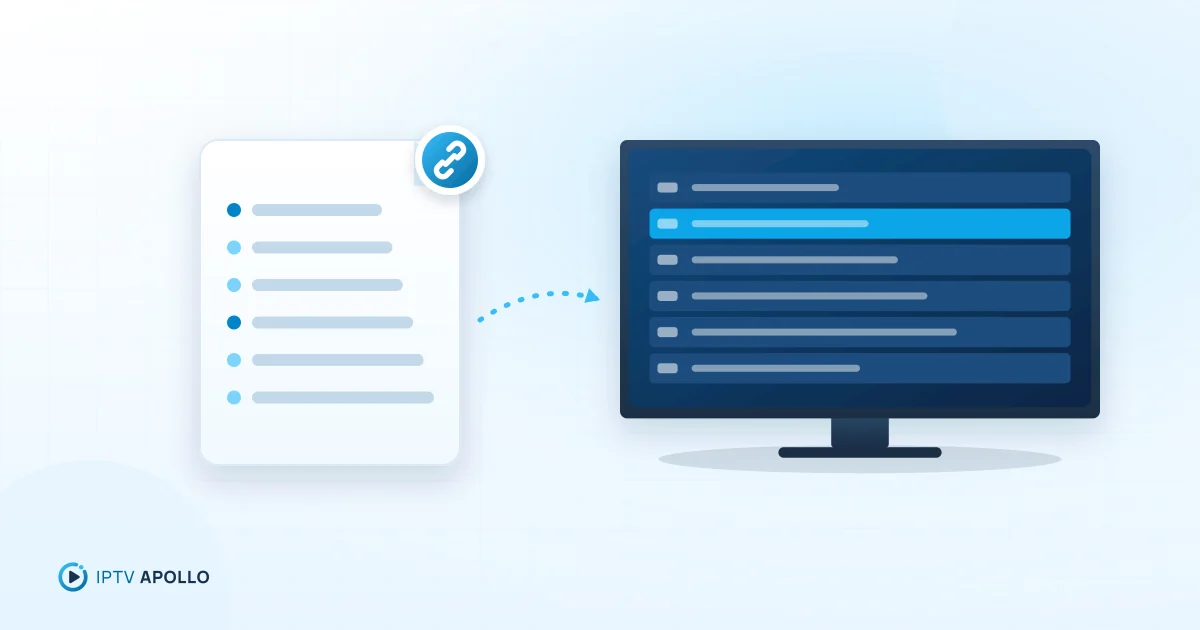
An M3U playlist is a text file that lists channels and the addresses of their streams. Your provider usually gives it to you as a URL. Adding it to a player is one of the two common ways to connect to an IPTV subscription — the other is an Xtream Codes login (see the M3U and Xtream explainer).
What's inside an M3U playlist
You never need to edit it, but knowing what it looks like helps with troubleshooting:
#EXTM3U
#EXTINF:-1 tvg-id="example.news" tvg-name="Example News" tvg-logo="https://…/logo.png" group-title="News",Example News
https://example-server/stream/12345
#EXTM3U— marks the file as an extended M3U playlist#EXTINF— describes the next channel: guide ID (tvg-id), name, logo and group (group-title)- The line below is the stream address
The tvg-id is what links a channel to the program guide. See what an EPG is.
Step-by-step: add a playlist URL
The exact labels vary, but the flow is similar in most players:
- Copy your playlist URL exactly as provided. IPTV Apollo customers receive these details from our team after activation.
- Open your player and choose Add playlist, Add M3U or New list.
- Select URL (rather than file) as the source.
- Paste or type the URL. Check it starts with
http://orhttps://and contains no spaces. - Name the playlist (for example, "Apollo").
- Select Save, Add or Load, and wait while the player downloads and processes the list. Large lists can take a minute on slower devices.
- Open a channel to confirm playback.
Add the program guide
With M3U setups, the guide is usually a separate EPG URL (XMLTV). In your player's EPG or guide settings, add that URL and refresh. Some playlists reference the guide in their header (url-tvg="…"), and the player picks it up automatically. Full steps: our EPG setup guide.
Set auto-refresh
If your player has a "refresh playlist on start" or "update every X hours" option, turn it on. That keeps the channel list current without re-adding it.
Common errors and fixes
| Problem | Likely cause | Fix |
|---|---|---|
| "Invalid playlist" or "parse error" | Incomplete URL or a typo | Copy the URL again; check for missing characters |
| Playlist loads but channels won't play | Subscription inactive, or connection limit reached | Check your account status; stop playback on other devices |
| Takes forever to load | Very large list on a slow device | Wait, then hide unused groups; consider a lighter player |
| Channels play but no guide | EPG URL not added, or IDs don't match | Add the EPG URL; see EPG not updating |
| Worked yesterday, not today | Subscription ended or details changed | Check your account; see fixing login errors |
For more detail, see channels not loading.
Typing tips for TV remotes
Long URLs are painful to type with a remote. Options:
- Use a player that accepts details from your phone (QR code or web upload)
- Use your platform's phone app as a keyboard (Fire TV and Google TV apps do this)
- Use an Xtream Codes login instead, which is shorter: how to configure Xtream Codes
Security
Your playlist URL usually contains your login. Don't post it in forums or screenshots, and don't share it — it uses your connections and may breach your provider's terms.
Stuck? IPTV Apollo customers can contact support.
Frequently asked questions
Should I use the playlist URL or download the file?
Is my M3U URL private?
This guide is for general information. Third-party apps and device menus change over time; if something looks different on your device, check the app or manufacturer's own documentation. Brand names belong to their respective owners.
Related reading
Troubleshooting
M3U vs Xtream Codes: Understanding the Differences
M3U playlists and Xtream Codes logins both connect a player to an IPTV subscription. Compare how they work, what loads automatically, ease of setup and which to choose.
3 min read
Setup
How to Configure Xtream Codes in a Compatible Player
Step-by-step: enter an Xtream Codes login (server URL, username, password) in a compatible IPTV player, format the server address correctly, and fix common login errors.
2 min read
Setup
How to Set Up EPG on an IPTV Player
Step-by-step: load the program guide in your IPTV player for Xtream Codes and M3U setups, set the update schedule and time offset, and match channels manually.
2 min read